
It's Monday morning and you're looking at last week's AC servicing ads in Sharjah. Ads Manager says they brought in 31 leads. Your CRM shows 24 new contacts from the same form, and your coordinator's call log shows 12 of those were phoned. Seven submissions need checking before you can tell what happened. Twelve arrived and nobody called. And nobody can tell you which seven.
Quick answer
within minutes of someone submitting your form, four things should be true. Their answers are in a contact record your team works from, with nothing blank. One named person owns the follow-up and knows it has arrived. A first reply goes out on the channel they asked for, by a time you've agreed. And the lead can be counted, so once a week the total in Ads Manager matches the total in your CRM. The examples below use GoHighLevel, but the same checks apply to any CRM.
A connection can stop delivering leads while the ad keeps running. Start with the form so you know which answers to look for in the CRM.
On this page
What should the form ask for?
Work backwards from the first reply. Whoever calls or messages the lead needs enough to make that conversation useful, and nothing that only slows the form down on a phone screen. For an AC servicing business, that usually comes down to four questions:
Scroll the table to see all columns.
| Question on the form | Why your team needs it | Where it should land in the CRM |
|---|---|---|
| Name and phone number | To reply at all | The standard contact fields |
| Area, such as Al Majaz or Muwaileh | To check you cover it and send the right technician | A custom field called Area |
| What needs doing: a service, a repair or a new unit | To quote for or book the right visit | A custom field or a tag |
| Best way to reach them: call or WhatsApp, and when | To reply the way they asked | A custom field your follow-up reads |
A custom field is simply a box you add to the contact record for an answer your CRM has no standard place for, like the area.
Meta fills in the name, email and phone number from the person's Facebook or Instagram profile, and they can edit them before sending. That makes the form quick to complete, but the email you receive is whatever is on their profile, which may not be an inbox they check. Asking how they'd like to be contacted costs one tap and can save a wasted first attempt.
If your form offers a review step, try it on a phone. Check that visitors can see and correct their details before submitting.
Every instant form needs a link to a privacy policy. HighLevel's form guide lists a copy of LeadConnector's policy as one option, but your own is the better choice, because the policy has to describe what your business does with these details.
Finally, give the form a name anyone will recognise later, such as "AC servicing, Sharjah, Nov". Meta won't let you edit a form once it's published, so changing a question means duplicating it and saving a new one. Old forms can be archived but never deleted, which is how an ad account slowly fills with near-identical versions.
A well-built form only helps if its answers arrive intact, and the route from Meta to your CRM has more ways to fail quietly than the word "Connected" on your settings screen suggests.
How does a lead reach your team, and where can it go missing?
When someone submits your form, the lead is stored with Meta, against your Facebook Page. It isn't in your CRM yet. Something has to collect it: your CRM's built-in Meta connection (in HighLevel, the LeadConnector app you authorise when you connect Facebook), a connector tool such as Zapier or Make, or a person downloading a spreadsheet from Ads Manager. In technical terms, Meta sends a webhook the moment a lead is submitted, and the CRM then fetches the answers through Meta's API using a permission called leads_retrieval.
Meta limits when you can download lead data. Keep a copy through your approved CRM process and investigate missing submissions promptly. Meta’s lead download guidance
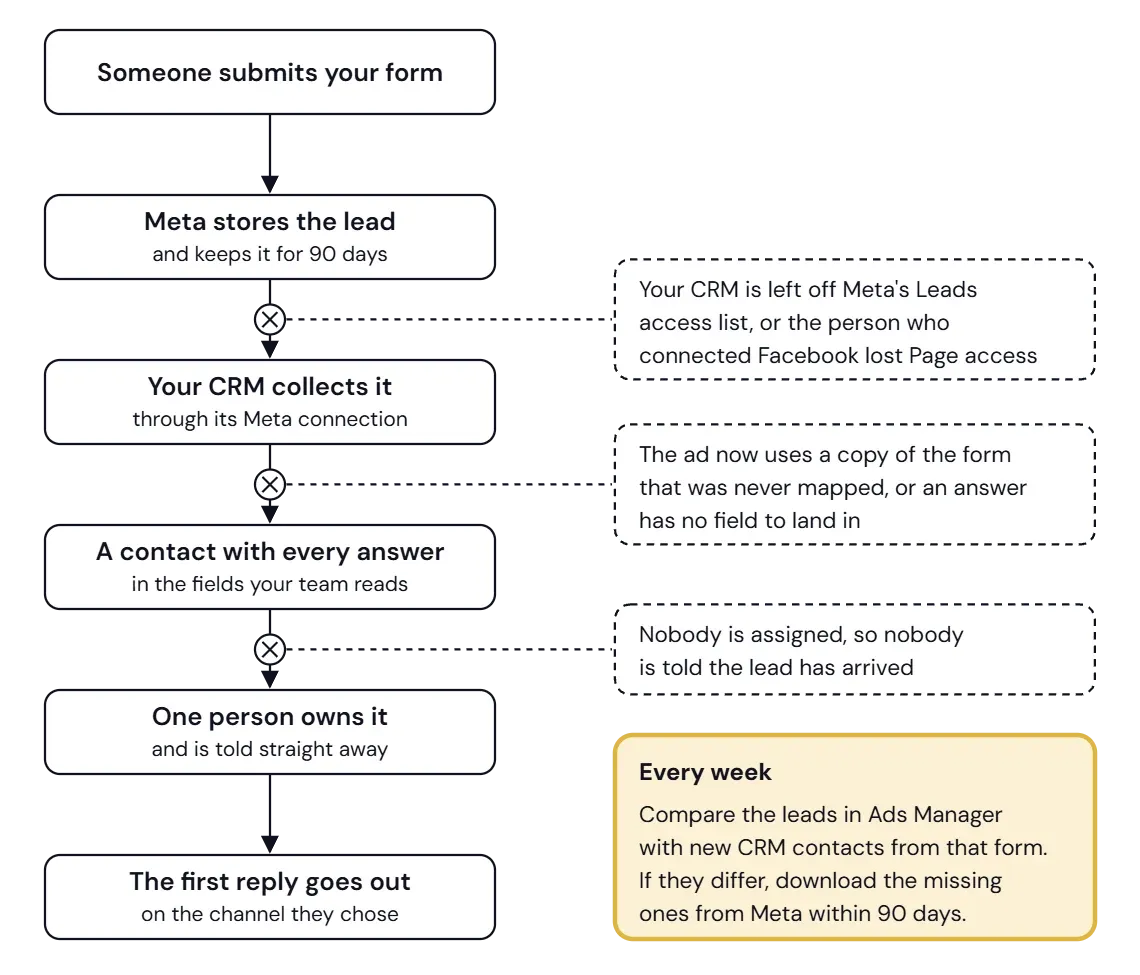
Each of these breaks is easy to miss, because the ad keeps running and Ads Manager keeps counting.
Your CRM doesn't have leads access. Review the Page and CRM permissions in Meta Business Suite. For HighLevel, check that LeadConnector has the necessary access.
The person who connected Facebook has lost access. The connection runs on the permissions of whoever authorised it. HighLevel's troubleshooting guide says that admin must keep their access or the CRM can no longer fetch leads, and that a password change or a change to their Page permissions can break the connection too. If a freelancer or a former employee set it up, reconnect with an account that belongs to the business and will stay a Page admin.
The ad now uses a copy of the form. Because published forms can't be edited, fixing a typo or adding a question creates a new form. Your CRM's field mapping was set up for the old one, and HighLevel warns that an unmapped form can stop answers syncing. If your follow-up workflow uses the Facebook Lead Form Submitted trigger with a Form Is filter, it's still listening for the old form, so leads from the new one never start it. The same blank answers appear when a question has nowhere to land: in HighLevel, a custom field has to exist before the mapping screen will offer it.
So the only reliable check is a test lead that travels the whole route and gets read by the person who'll reply.
How do you test the route before you spend money?
Meta's Lead Ads Testing Tool sends a test lead through a real form: you choose your Page and the form, then create the lead. You need an Advertiser role or higher on the Page, and each form can hold only one test lead at a time, so delete the last one before sending another. Then follow it all the way:
- In Ads Manager, check which form your live ad actually uses, and test that one.
- Give the test a name you'll recognise, such as "Test AC form v2", and answer every question, including the custom ones.
- Open the CRM as the person who'll reply, on the screen they really use, which is often the mobile app. Check that every answer is there, in the right field.
- Check that the follow-up ran: the contact has a tag naming the form, one person is assigned, and that person was notified. HighLevel's guidance is to put the Internal Notification step after the Assign to User step, so the alert reaches whoever was just assigned.
- Check that the first reply went out on the channel the test asked for, and note how long it took.
- Delete the test lead in Meta's tool and the test contact in your CRM, so neither distorts your counts.
Not sure where your own route would break? Tell us which form and CRM you use and we'll tell you which of these checks to run first for that setup.
A passing test proves the route works for someone new. Real leads aren't always new: the same person may submit twice, or message you on WhatsApp an hour later.
What should happen when the same person comes back?
You want one contact per person, the same owner as before, and the new request visible on that contact. Two CRM settings decide whether you get them.
Check how your CRM matches submissions. In HighLevel, review Contact Deduplication Preferences, then test the exact form and follow-up channel together. See what happens when a repeat submission uses the same phone number and a different email.
The second is assignment. HighLevel's Assign to User action can rotate new leads between several people, and its Only Apply To Unassigned Contacts toggle decides what happens to someone who already has an owner. With it off, a returning lead is reassigned to whoever is next in the rotation, and two people can each believe the enquiry is theirs. Switch it on so returning leads stay with their owner, and let the notification tell that person something new has arrived.
Then test it. Submit the same test details a second time and message your business WhatsApp from the test phone. Everything should end up on one contact with one owner; if the WhatsApp message creates a second contact, compare how the phone number is written on each. Our WhatsApp enquiry ownership guide covers what that owner does next, including reassignment and out-of-hours cover.
All of this assumes someone notices when the route stops working, and unless checking is somebody's job, nobody will.
Who notices when leads stop arriving?
Pick one person and one day of the week. For each form, they compare four numbers from the week before:
Scroll the table to see all columns.
| Number | Where to find it | If it's lower than the number above it |
|---|---|---|
| Leads Meta recorded | Ads Manager, the Results or Leads column for that form's ads | This is your starting point |
| Form submissions received | CRM history or integration log | Check connection and mapping. Keep repeat submissions separate from unique contacts. |
| Leads that got a first reply | Your CRM conversations or the call log | Ownership or notifications aren't working |
| Leads that became a booking or a quote | Your pipeline | The route is fine; look at the offer, the audience or the form's questions |
Compare submissions with submissions received before comparing unique contacts. Repeat enquiries can belong to one contact. Export any available missing submissions and check your CRM’s matching settings before importing. Assign a person to follow up on recovered enquiries.
Where to start this week
Open Ads Manager and your CRM side by side and compare last week's numbers for one form. If they match, send a test lead with Meta's tool and follow it to the first reply. If they don't, start with the connection and the mapping, and recover the missing leads while Meta still has them. Fix the route before you raise the budget, because every extra lead will travel the same path.
Not sure every lead is reaching your team?
Send us two numbers for the last 30 days: the leads Ads Manager shows for one form, and the new contacts your CRM received from it, along with the name of your CRM. If they don't match, we'll tell you where on the route the leads are most likely going missing and what to check first.
Plan the lead handover
Define the form, the information staff need and the follow-up route before connecting the CRM.
Keep reading

How to assign WhatsApp enquiries when three people answer the inbox
Give each WhatsApp enquiry an owner, keep context when customers reply, and check shift handovers with a worked team workflow and acceptance checklist.

A two-week social media content calendar for a service business
Use a filled-in two-week calendar and reusable production brief to plan posts, assign approvals and scope content creation support.

What changes the cost of a business website in Sharjah?
Compare website scopes, content responsibilities and running costs. Use a sample Sharjah business brief to request a clearer website quote.